Quick start
Get Krado One running in under 5 minutes using the official Docker images.
Prerequisites
| Tool | Minimum version |
|---|---|
| Docker | 24+ |
| Docker Compose | v2 |
1 — Create your compose file
Create a directory and download the compose file:
mkdir devx && cd devx
curl -O https://raw.githubusercontent.com/sir-vikk/devx-platform-enterprise/main/deploy/docker/docker-compose.yml
curl -O https://raw.githubusercontent.com/sir-vikk/devx-platform-enterprise/main/deploy/docker/nginx.conf
Or create docker-compose.yml manually — see Docker deployment for the full file.
2 — Configure
# Copy the sample env file (edit before starting for production)
curl -O https://raw.githubusercontent.com/sir-vikk/devx-platform-enterprise/main/.env.example
cp .env.example .env
For local testing the defaults work out of the box — SQLite is used automatically, no external services required.
To enable integrations (Jira, Slack, OpenAI, etc.) edit .env before starting. See Configuration reference.
3 — Start
docker compose up -d
This pulls and starts:
- Backend API on port
8080 - Frontend on port
80/5173
4 — First-time setup
Open http://localhost (or http://localhost:5173 if using the dev port). You will be presented with a two-step setup wizard:
Step 1 — Organization
| Field | Description |
|---|---|
| Organization name | Display name (e.g. "Acme Engineering") |
| Slug | URL-safe identifier (e.g. acme) |
| Domain | Optional email domain for org matching |
Step 2 — Owner account
| Field | Description |
|---|---|
| Username | Login username |
| Owner email address | |
| Password | Must be at least 6 characters |
After submitting, you are automatically logged in as the org owner with full admin access.
The setup wizard only appears on a fresh database. If you need to reset, remove the devx_data volume and restart:
docker compose down -v && docker compose up -d
5 — Explore
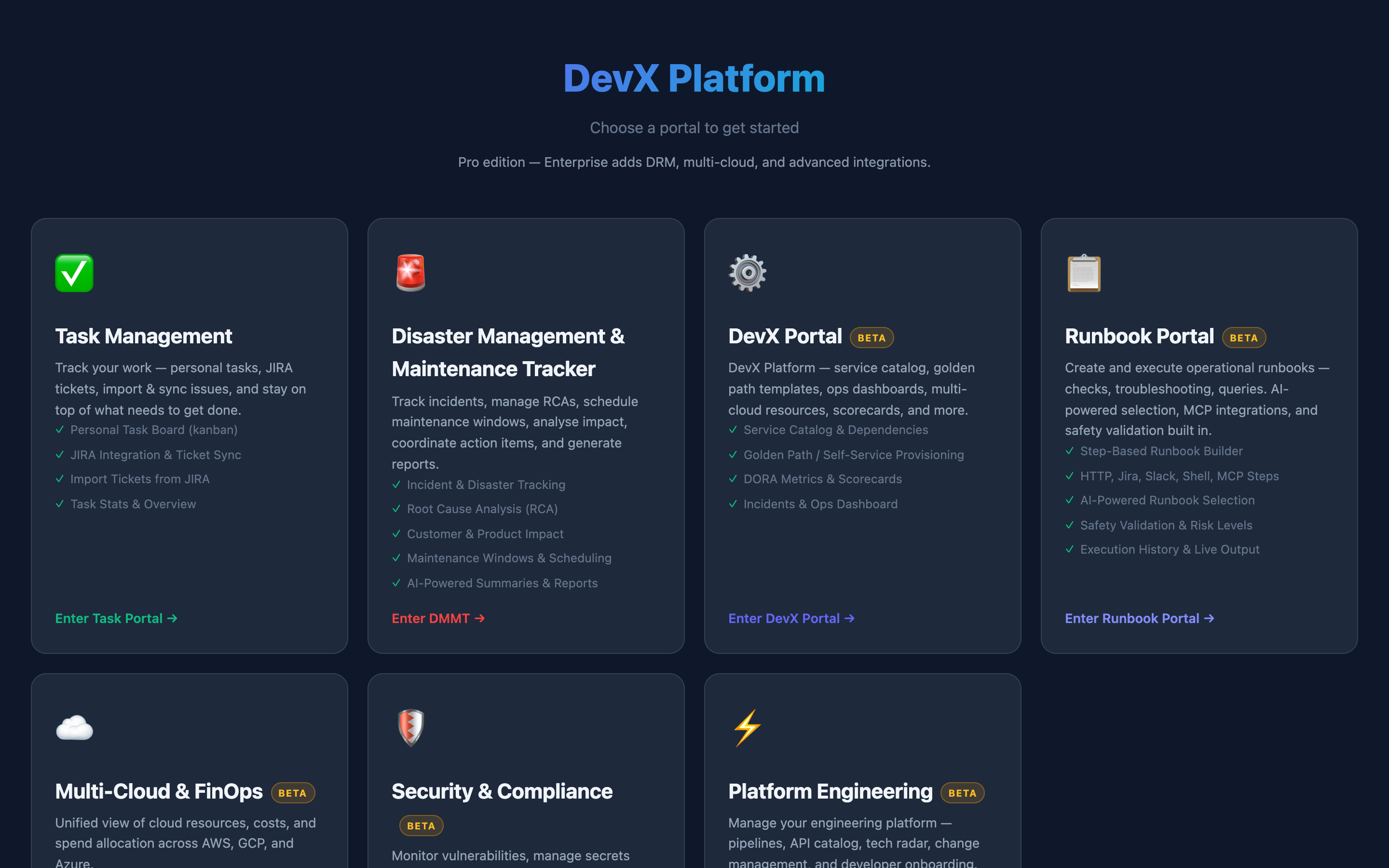
From Portal Home you can enter any of the enabled portals. Use Portal Config → Portal Settings to toggle individual sections.
What's next
- Docker deployment — production configuration, PostgreSQL, TLS
- Configuration reference — all environment variables
- Editions & quotas — Free vs Pro vs Enterprise
- Users, roles & permissions — add your team